 LaoChaofeng
Local Direct Deployment to EdgeOne Pages
Local Direct Deployment to EdgeOne Pages
Why Choose Local Direct Deployment?
In the project deployment process, I chose the local direct deployment method to EdgeOne Pages for several important reasons:
1. Deployment Convenience
The biggest advantage of local direct deployment is simplicity and speed. Compared to traditional GitHub Actions or other CI/CD workflows, local deployment eliminates complex configuration steps:
- No CI/CD pipeline configuration needed: No need to write complex GitHub Actions configuration files
- Immediate feedback: Deployment results are visible immediately, no need to wait for CI/CD processes
- Easy debugging: When problems occur, you can debug directly on your local machine and quickly locate issues
2. Cost Effectiveness
Local deployment offers better cost-effectiveness compared to other solutions:
- Zero additional cost: No additional CI/CD service fees
- Full resource utilization: Make full use of local computing resources for building
- Network optimization: Local network environments are usually more stable than cloud builds
Detailed Deployment Process
Prerequisites
Install EdgeOne Tool
# Install using npm or pnpm
npm install -g edgeone
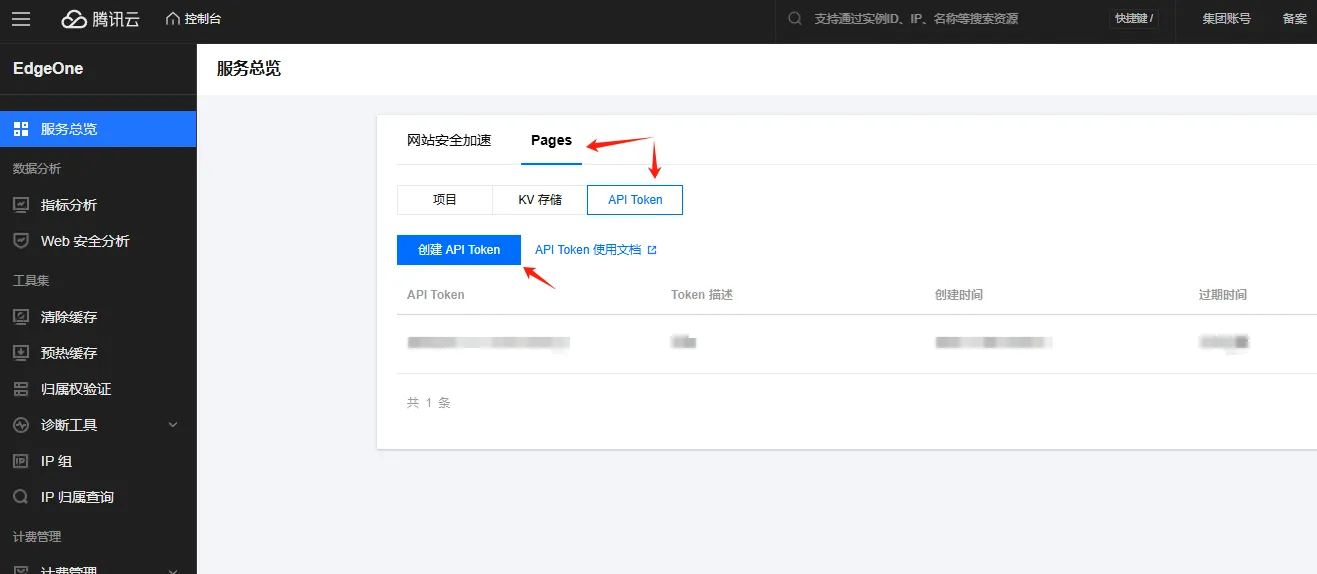
Get API Token
- Log in to Tencent Cloud Console
- Go to EdgeOne Pages service
- Generate API Token and store it securely
Deployment Scripts
PowerShell Script (edgeone.ps1):
# edgeone.ps1 - One-click deployment script
# Deploy script for Tencent Cloud EdgeOne Pages

Write-Host "============================================" -ForegroundColor Green
Write-Host "   Deploy to Tencent Cloud EdgeOne Pages" -ForegroundColor Green
Write-Host "============================================" -ForegroundColor Green

# Clean old build artifacts and rebuild
Write-Host "[INFO] Cleaning old build artifacts..." -ForegroundColor Cyan
Remove-Item -Recurse -Force "dist" -ErrorAction SilentlyContinue

Write-Host "[INFO] Building project..." -ForegroundColor Cyan
pnpm build

# Execute deployment
Write-Host "[INFO] Starting deployment..." -ForegroundColor Cyan
edgeone pages deploy your-project-build-output-path -n project-name -t your-api-token

Write-Host ""
Write-Host "============================================" -ForegroundColor Green
Write-Host "   Deployment completed!" -ForegroundColor Green
Write-Host "============================================" -ForegroundColor Green
Write-Host ""
Write-Host "Project deployment completed" -ForegroundColor Green
Terminal execution:
.\edgeone.ps1Linux Shell Script (edgeone.sh):
#!/bin/bash
# edgeone.sh - Linux one-click deployment script
pnpm install && pnpm build && edgeone pages deploy your-project-build-output-path -n project-name -t your-api-token
Terminal execution:
./edgeone.shManual Deployment Command
If you don’t want to use scripts, you can run the command directly:
edgeone pages deploy your-project-build-output-path -n project-name -t your-api-tokenAdvantages Comparison
| Deployment Method | Local Direct Deployment | GitHub Actions | Traditional FTP |
|---|---|---|---|
| Configuration Complexity | ⭐⭐ | ⭐⭐⭐⭐ | ⭐⭐⭐ |
| Deployment Speed | ⭐⭐⭐⭐⭐ | ⭐⭐⭐ | ⭐⭐ |
| Cost | Free | Free (with limitations) | Paid |
| Flexibility | High | Medium | Low |
| Debugging Convenience | High | Low | Medium |
Best Practices (Optional)
1. Environment Variable Management
It’s recommended to store sensitive information like API Tokens in environment variables:
# Set in system environment variables
$env:EDGEONE_TOKEN = "your_api_token"
2. Build Optimization
You can perform some optimizations during local builds:
- Use cache to speed up builds:
pnpm build --force - Clean old build artifacts:
rm -rf dist && pnpm build - Verify build results: Check dist directory contents before deployment
3. Error Handling
Add error handling logic to scripts:
try {
    # Deployment logic
    edgeone pages deploy your-project-build-output-path -n project-name -t $env:EDGEONE_TOKEN
} catch {
    Write-Host "Deployment failed: $($_.Exception.Message)" -ForegroundColor Red
    exit 1
}
EdgeOne Pages Limitations
When using the EdgeOne Pages service, it’s important to be aware of the following limitation dimensions that may affect deployment success and project scale:
| Limitation Dimension | Specific Limit | Trigger Condition/Explanation | Impact Scope |
|---|---|---|---|
| Single File Size | ≤ 25 MB | Any single file in the deployment package exceeds this limit. | Directly affects API deployment, hard limit. |
| Total File Count | ≤ 20,000 files | The total number of files in the entire deployment project exceeds this limit. | Directly affects API deployment, hard limit. |
| Total Storage | ≤ 5 GB | Total storage space occupied by all retained deployment versions. | Cannot create new deployments when total storage reaches the limit. |
Important Notes:
- These limitations apply to both free and paid versions of EdgeOne Pages
- It’s recommended to check project file sizes and counts before deployment
- For large projects, consider using file compression or CDN optimization strategies
Frequently Asked Questions
Q: What to do if deployment fails?
A: Check network connection, API Token validity, and whether the directory exists with complete contents.
Q: How to check deployment status?
A: Use the command edgeone pages list to view all deployment records.
Q: Can I rollback to a previous version?
A: Yes, EdgeOne Pages supports version rollback functionality.
Summary
Local direct deployment to EdgeOne Pages is a simple, efficient, and cost-effective deployment solution, especially suitable for:
- Personal projects and small teams
- Projects requiring rapid iteration
- Scenarios wanting to keep deployment processes simple and transparent
