 LaoChaofeng
The Efficiency Revolution:Everything, Your Ultimate Answer to Windows File Search
Everything: The All-Powerful Search
In our modern digital lives, everyone has likely had this experience: You distinctly remember saving a contract, an old photo, or a project report on your computer, but upon opening Windows’ built-in search tool, the progress bar crawls with agonizing slowness. Those few minutes spent waiting for results feel like stolen time, leaving you utterly lost in a chaotic sea of files.
The arrival of Everything aims to end this inefficient norm. Developed by David Carpenter, this free and open-source software has completely rewritten the rules of Windows file search with its revolutionary speed and minimalist design. Its core philosophy is simple: when you want to find a file, it should appear before your eyes “instantly.”
I. The Secret to Speed: Behind Millisecond Response
How fast is Everything? Upon its first launch after installation, it can index millions of files within a minute. For every subsequent search, the results list refreshes almost simultaneously as you type, achieving a millisecond-level response time.
The secret to this speed lies in its unique working principle. Unlike Windows Search, which laboriously scans file contents, Everything leverages the NTFS file system’s “Master File Table (MFT).” The MFT acts like a directory ledger for the hard drive, recording the names and paths of all files. Everything simply reads this ledger quickly to build its own index database, without needing to open a single file. This lightweight indexing method results in typically less than 10MB of memory usage and negligible CPU consumption during runtime, truly making it “present yet unnoticeable.”
Important to note: Everything’s lightning-fast capability primarily targets hard drive partitions using the NTFS file system. Its support for older or external FAT32/USB drives, etc., is limited, and search speeds can drop significantly.
II. From Novice to Expert: Powerful Search Syntax
Everything’s interface is extremely simple, consisting only of a search box and a results list. However, within this simple box lies a powerful and precise search grammar. Mastering it transforms your experience from “finding a needle in a haystack” to “precision-guided targeting.”
1. Basic Search
- Keyword Search: Directly enter any word from the filename, like
annual report, and all files and folders containing that word are instantly listed. - Multi-condition “AND” Search: Separate multiple keywords with a space to indicate all must be present. For example,
project budget xlsxcan quickly locate relevant spreadsheets. - Multi-condition “OR” Search: Connect keywords with a vertical bar
|to indicate any one of them. For example,*.jpg|*.pngfinds all JPG and PNG images in one go.
2. Advanced Precise Targeting
When basic searches are still too broad, you can use more precise syntax to filter results directly by file properties. The following table summarizes some of the most practical advanced syntax:
| Search Syntax | Function Description | Usage Example |
|---|---|---|
*.extension | Search for files of a specific type. | *.pdf searches for all PDF documents |
size: | Search by file size. | size:>500MB searches for files larger than 500MB |
dm: | Search by modification date. | dm:today searches for files modified today |
path\ keyword | Search within a specific folder. | D:\Work\ contract searches for contract files within the “Work” folder on the D drive |
! | Exclude specific keywords. | image !.tmp searches for files with “image” in the name but excludes temporary files |
dupe: | Search for duplicate files. | dupe: finds files with duplicate names |
Additionally, Everything supports wildcards (* for any characters, ? for a single character) and regular expressions, catering to the complex needs of programmers and technical users.
III. More Than Search: Underrated Practical Features
Everything’s role extends far beyond a quick launcher; it integrates multiple practical features that enhance overall productivity.
- Real-time Monitoring & Synchronization: The software runs quietly in the background, monitoring any changes to files (creation, renaming, deletion) in real-time and instantly updating its index, ensuring search results are always current.
- HTTP/ETP Server: This is a “game-changer” feature. You can enable the HTTP server within Everything, set a port, and then any phone, tablet, or other computer on the same local network can remotely search and access files on your computer by entering your PC’s IP address in a browser, easily enabling cross-device file sharing.
- File Preview & Batch Operations: Enable the “Preview” pane from the View menu to directly preview the contents of images, text files, and even Office documents. Search results support direct drag-and-drop operations, and you can select all results for batch copying, moving, or deletion.
- High Customizability: You can customize the interface font and colors, add shortcuts (e.g., set
Alt+Spaceto summon the search box instantly), save specific searches as bookmarks, or add private folders you don’t want indexed to an exclusion list.
IV. Practical Applications: Who Needs Everything?
It’s safe to say that almost all Windows users can benefit, but the experience enhancement is particularly significant for the following groups:
- Office Workers & Content Creators: Computers are filled with numerous documents, design drafts, and video assets. Simple keyword combinations can instantly locate historical versions of files.
- Programmers & Researchers: Project files can number in the tens of thousands. Everything allows for rapid navigation through source code, library files, and configuration documents, making it an essential development environment tool.
- “Zen” File Managers: If you’re tired of complex folder classification, you can fully adopt the “Everything strategy”—dump all files haphazardly. Just remember a keyword or two to retrieve any file in seconds when needed, completely freeing yourself from the anxiety of organization.
V. Acquisition, Installation, and Precautions
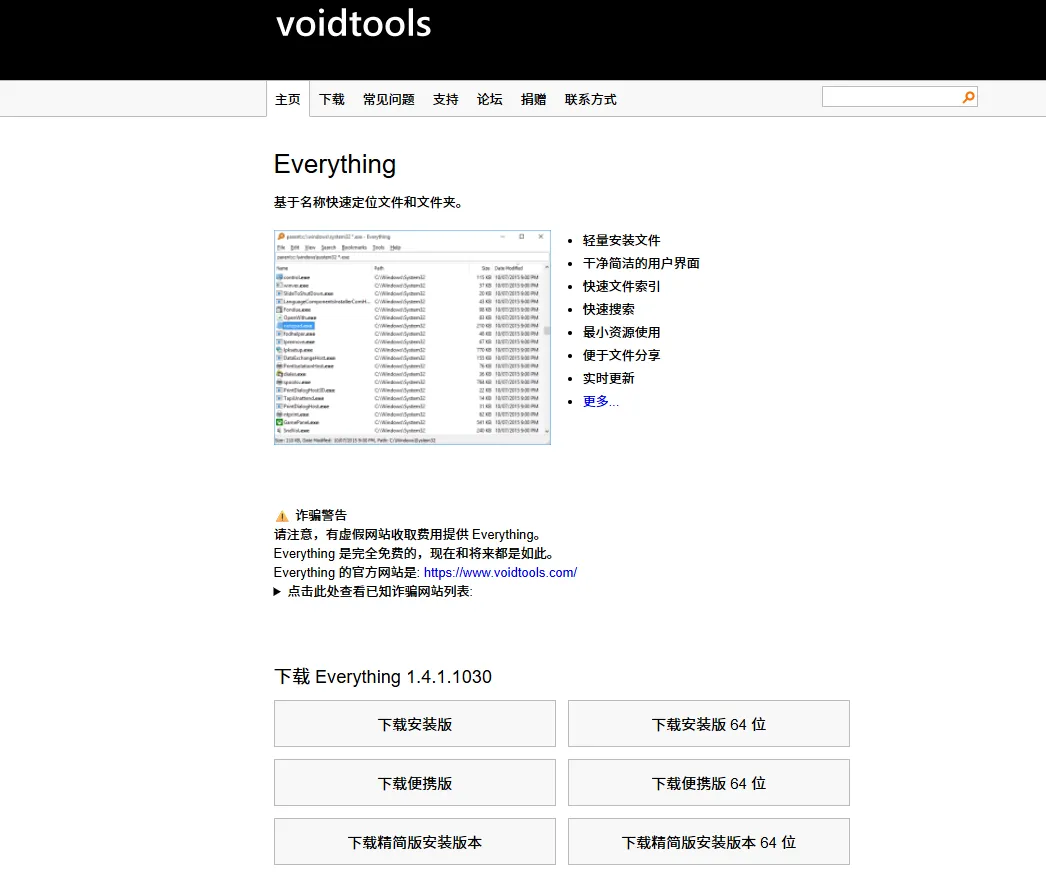
Everything is completely free software. The safest way to obtain it is to visit its official website (voidtools.com) for download. The installation process is straightforward, but here are a few suggestions:
- Grant Administrator Privileges: Upon first run, it’s advisable to allow it to run its service with administrator rights to ensure indexing of all disks and optimal performance.
- Choose Startup on Boot: Let it reside in the background. Its resource footprint is minimal, yet it ensures it’s always ready.
- Regarding Content Search: Everything’s strength lies in filename search. Although newer versions support the
content:syntax for searching inside files, its efficiency is not high. For deep text searches within documents, it should be paired with specialized tools like AnyTXT Searcher.
In an era of information overload, time is the most valuable resource. Everything, in an elegant and efficient manner, solves the most fundamental and frustrating problem in file management: “finding.” It’s like adding a high-speed index to your computer’s memory, making all files truly accessible at your fingertips. As one programmer user put it: “My computer has hundreds of thousands of code files, and Windows search has long been paralyzed. With Everything, all results are listed in 0.5 seconds. I can’t work without it.”
Spending a few minutes downloading and adapting to it will repay you with countless hours of efficiency and peace of mind in the future. This might just be the most profitable “efficiency investment” you can make today.
Official Website: Download
